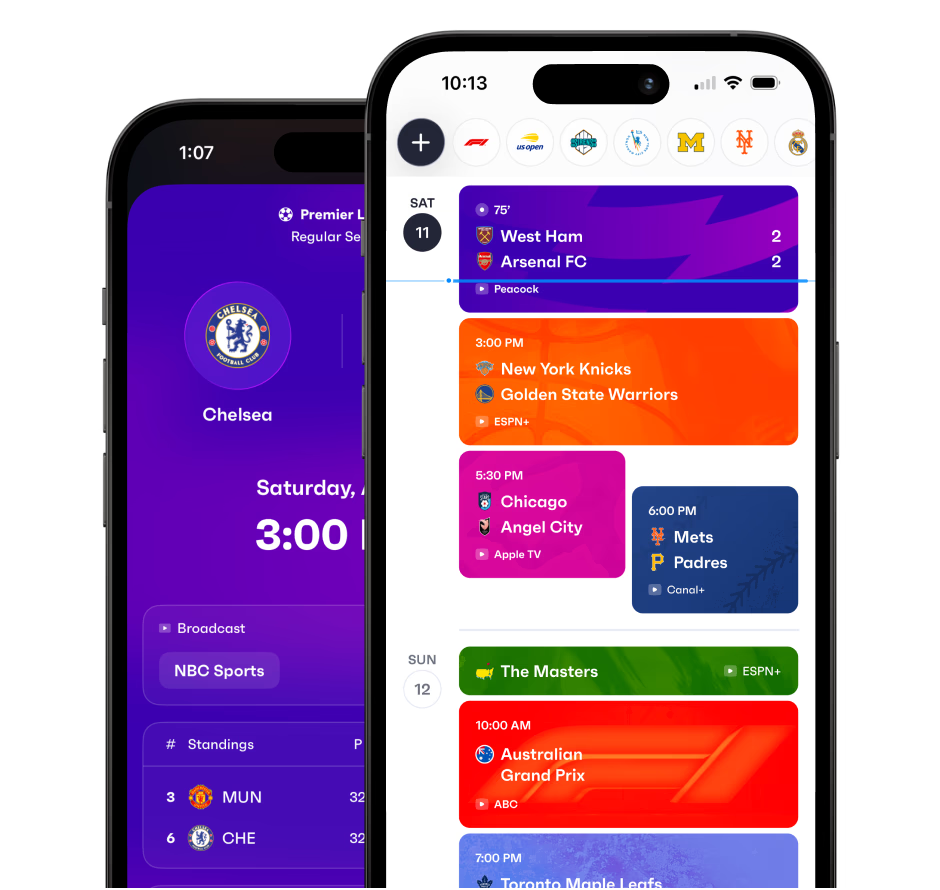
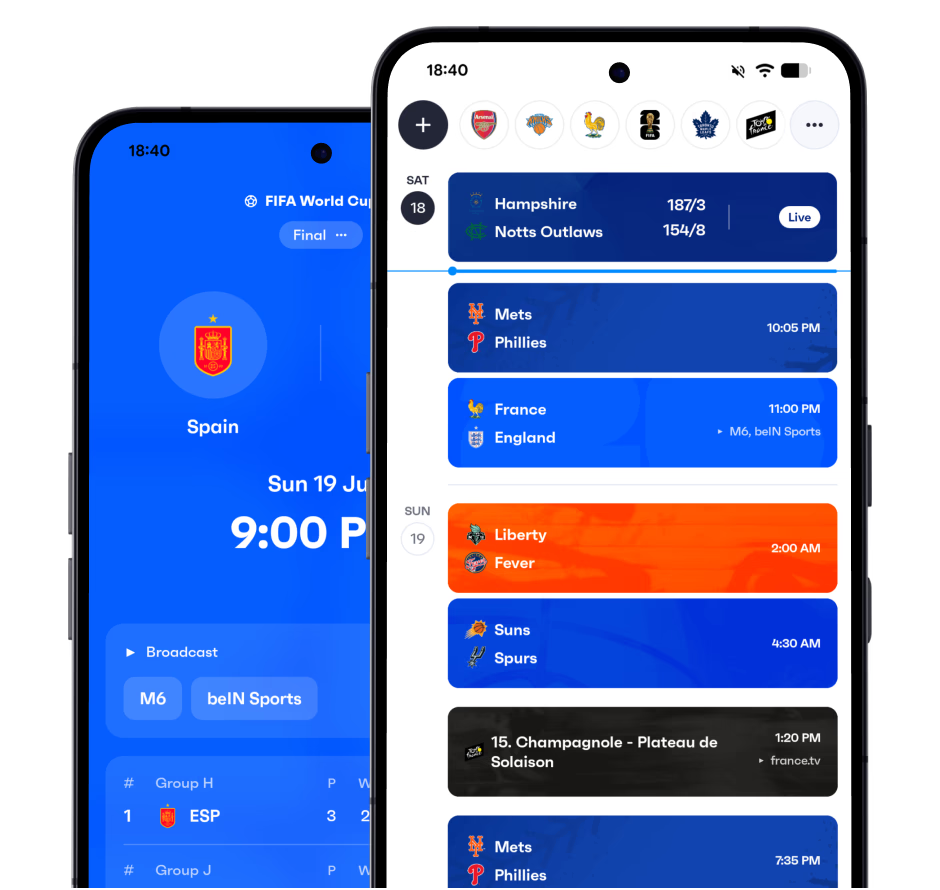
Sync Challenge to your calendar
Add the Challenge schedule to your favorite calendar app.
Frequently asked questions
- How do I add the Challenge schedule to Google Calendar?
- Download the Fixtured app, follow Challenge, then turn on calendar sync. You get a calendar you can add to Google Calendar, Apple Calendar or Outlook.
- Can I add Challenge games to my iPhone or Android calendar?
- Yes. Fixtured is available for iPhone and Android and works with Apple Calendar, Google Calendar and Outlook, so Challenge games can sit on whichever calendar you already use.
- Will new Challenge games be added automatically?
- Yes. Once Challenge is synced, new fixtures and schedule changes show up on your calendar automatically.
- Can I sync more than Challenge to my calendar?
- Yes. Everything you follow in Fixtured can go into a single calendar feed, and you can customise what's included.
- Is calendar sync free?
- Calendar sync is a premium feature of the Fixtured app.